LS Central AppShell is an app to open the LS Central POS. The LS Central AppShell allows the POS to be used on mobile devices and Windows devices connected to peripherals via Bluetooth or WiFi.
The LS Central Hardware Station (referred to as HWS from now on) runs only on Windows. This means that the POS, started in LS Central AppShell, has to connect to a HWS running on a Windows machine. With the LS Central AppShell, the POS can also connect to peripherals through the LS Central AppShell's own HWS.
App icon to start the LS Central AppShell

The LS Central AppShell settings icon
This icon is only an option for Android. With other operational systems you can open settings after starting the LS Central AppShell.

Platforms
The LS Central AppShell is available on Android, UWP, iOS and Windows. Connection to peripherals is only available on Android.
LS Central AppShell setting for Android
To open the LS Central AppShell settings, tap the LS Central AppShell Settings icon. There are two tabs available on the screen, General and Devices.
General
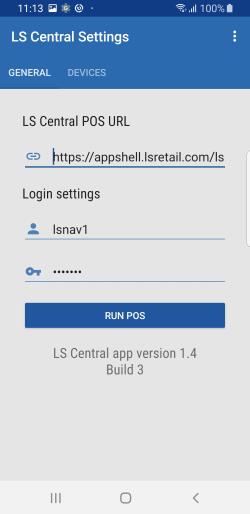
The LS Central POS URL is entered with authentication information. All fields are automatically saved when their values change.
The server URL is a direct URL to the LS Central POS, which is on page 99008880, for example:
http://ComputerName:Port/WebServerInstance/tablet.apsx?page=99008880
Example:
http://MyNav:8080/DynamicsNav110/tablet.aspx?page=99008880
For more details see How to: Open the MicrosoftDynamics Business Central Web Client.
POS profile for LS Central AppShell users
We recommend that you set up an LS Central profile for POS users that will run LS Central POS.
To do this do the following:
- Open Profiles (Roles).
- Create a new profile, for example give it an ID as LS RETAIL POS.
- Enter the value 99008880 in the Role Center ID field.
- Fill out other fields as needed.
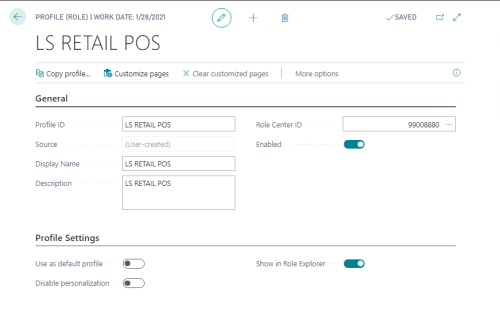
- In User Personalizations, connect the user IDs using the LS Central AppShell with LS Retail POS profile.
- This ensures that the users always start on the POS login page when they start LS Central or log off the POS.
If an LS Central profile has been configured for the LS Central user who is going to run the LS Central AppShell, the Server URL can be minimized to:
http://ComputerName:Port/WebServerInstance/tablet.aspx
Example:
http://MyComputer:8080/BCCentral/tablet.aspx
Note: It is good practice to verify that the URL is correct by first trying it directly from a web browser.
When the server URL has been entered to the LS Central AppShell, simply tap the LS Central AppShell icon to open the POS. It is not necessary, however, to go through the Settings screen to run the POS. Once the settings have been filled out correctly, the user can leave the Settings screen and instead tap the LS Central AppShell icon to open the LS Central POS.
Devices
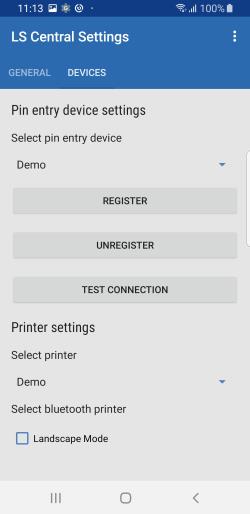
The Devices tab is for peripheral settings, for PEDs and printers.
Selecting the Demo PED will register Mock from LS Pay as payment device, and Demo printer will print the receipt on screen as an alert.
Log
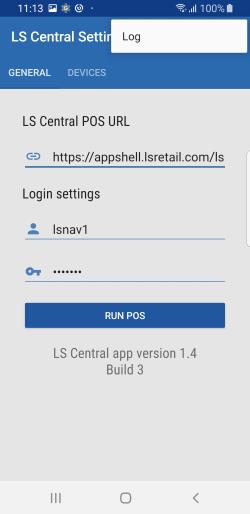
You can access the Log screen by tapping the three-dot icon in the right corner of the Settings screen.
Note: Should you require support, please submit the log files with your support request.
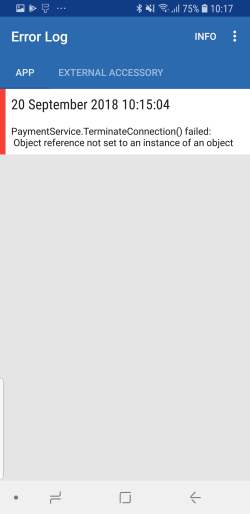
The Log screen has two tabs, App and External Accessory.
The App tab shows all logs from the LS Central AppShell, while the External Accessory tab shows the logs from LS Pay.
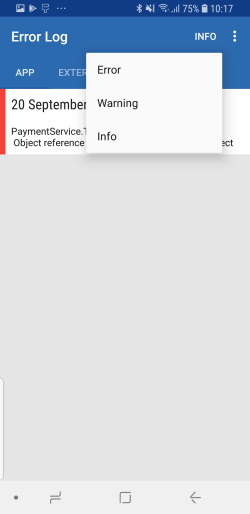
Tapping INFO, next to the three dots, lets you filter the logs by their log level.
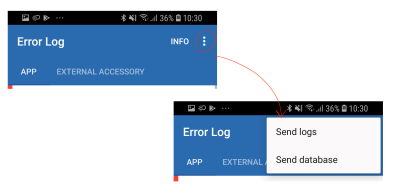
The three dots on the Log screen provide the option of sending the logs via email.